Overview
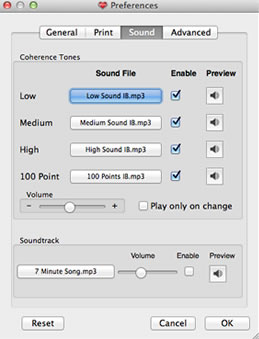
Sound in emWave Pro serves two purposes: it provides immediate feedback on your physiological state (Coherence Effects) and creates a relaxing background environment (Soundtrack). Both can be adjusted to suit your personal preference.
Adjusting Coherence Sound Effects
Coherence sounds are the distinct tones you hear as you move between Low (Red), Medium (Blue), and High (Green) states.
- Access Settings: Navigate to Preferences and click on the Sound tab.
- Select Sounds: You can change the specific audio file used for each level. Use the Preview icons to hear the sound before saving.
- Volume Control: Use the sliders to adjust the volume of the coherence prompts relative to your background music.
- Coherence Change Mode: Check this box if you only want to hear a sound when your level changes (e.g., moving from Blue to Green), rather than hearing a recurring tone.
Uploading a Personal Soundtrack
You can replace the default background music with your own relaxation tracks:
- Locate the File: In the Preferences menu, look for the Soundtrack section.
- Browse: Click the folder icon next to the default “7 Minute Song.mp3” to browse your computer’s files.
- Supported Formats: Your file must be in MP3, WAV, or WMA format.
- Enable and Preview: Check the “Enable” box and click Preview to ensure the file plays correctly within the emWave software. Note: Most HeartMath games will automatically turn off this soundtrack to avoid audio conflicts, with the exception of the “My Inspiration” game.
Quick Mute and External Audio
- Master Mute: If you need to silence the software quickly, click the Sound On/Off button (speaker icon) in the lower-right corner of the main program window.
- External Players: You do not have to use the built-in soundtrack feature. Many users prefer to play music through external applications like Spotify, iTunes, or Windows Media Player while running emWave in the background.