Overview
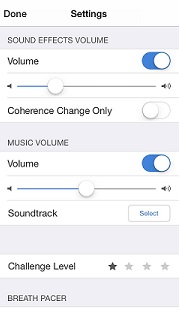
Sound is a vital component of the HeartMath experience, providing real-time feedback on your physiological state. The Inner Balance app allows you to independently control the volume of coherence feedback and background music to create your ideal practice environment.
Core Sound Controls
There are two primary volume sliders located within the app settings:
-
Sound Effects Volume: This slider controls the Coherence Tones. These are the “chimes” that sound every 5 seconds during a session to indicate your current coherence level (Low, Medium, or High).
-
Music Volume: This slider controls the Soundtrack you have selected from your device’s music library.
-
Note: This slider will have no effect if you have not selected a soundtrack file.
-
Interactions with Device Hardware
-
Master Volume: When a soundtrack is active, the app’s Music Volume slider is linked to your device’s master volume. Adjusting it within the app will also move your phone’s overall volume level.
-
Physical Buttons: You can use the physical volume buttons on the side of your smartphone or tablet to adjust these levels at any time.
Important Audio Rules
-
Hearing Tones while playing Music: If you have a soundtrack playing but want to hear your coherence chimes, make sure the Sound Effects Volume is not turned all the way down.
-
Muting Tones: If you prefer to practice with music only, simply slide the Sound Effects Volume to zero.
-
Clearing a Soundtrack: If you want to stop using a specific music track entirely, tap the Clear button next to the Soundtrack selection in Settings.
Quick Session Controls
During an active session, you don’t need to return to the Settings menu to silence your music. Simply tap the Speaker Icon located on the main session screen to toggle your soundtrack on or off instantly.